Get Started with the Basic App Template
This is a empty template app with a few tips to get you started.
It is based on
the app-template-basic and is a great starting point for your own app.
You are seeing
/Get Started/Welcome.cshtml because the link contains
?getstarted=true.
Click
🔙 to see the default view.
Where are the files?
The App Folder is located here: [system-root]\Portals\0\2sxc\Child Pages
The full path is: D:\inetpub\wwwroot\latest\Portals\0\2sxc\Child Pages
What's Included
The following list shows you what this template app includes, so that you better understand it and also feel comfortable with removing anything you don't need.
Folders and Files in the Template App
| Folder/File |
Type |
Description |
Recommendation |
📁/ |
|
contains the app's files |
place your own files here, or in subfolders |
📄/.gitignore |
text |
tells git which files to ignore |
update it to your needs |
🖼️/app-icon.png |
image |
icon to show in app selector |
replace with your own |
📄/app.csproj |
xml |
helps VS Code with IntelliSense |
update as needed - see 📖 docs |
📄/app.sln |
special |
helps VS Code with IntelliSense |
just ignore this, VS Code needs it |
📄/Default.cshtml |
Razor |
the default view which you see when adding the App to the page |
modify it, create more of these Razor files or delete it |
🖼️/Default.png |
image |
icon to show in view selector for the same-named cshtml |
replace with your own |
📄/readme.md |
markdown |
Documentation notes, shown in github or other git-systems. |
keep it, so you can document your app |
📁/App_Data |
|
Contains internal files.
This folder is protected. Files in this folder can not be accessed through the browser.
|
Just ignore for now. |
📄/App_Data/app.json |
json |
advanced settings for import/export, compiling etc. |
just ignore; it's important for advanced scenarios |
📁/Get Started |
|
getting-started instructions like these |
delete this folder once you're comfortable with the app |
First Recommended Steps
This App was just created, and you can now do anything you want with it.
In general, we recommend the following steps:
- Learn to work in this App using VS Code
- Setup Git
- Start creating your own App
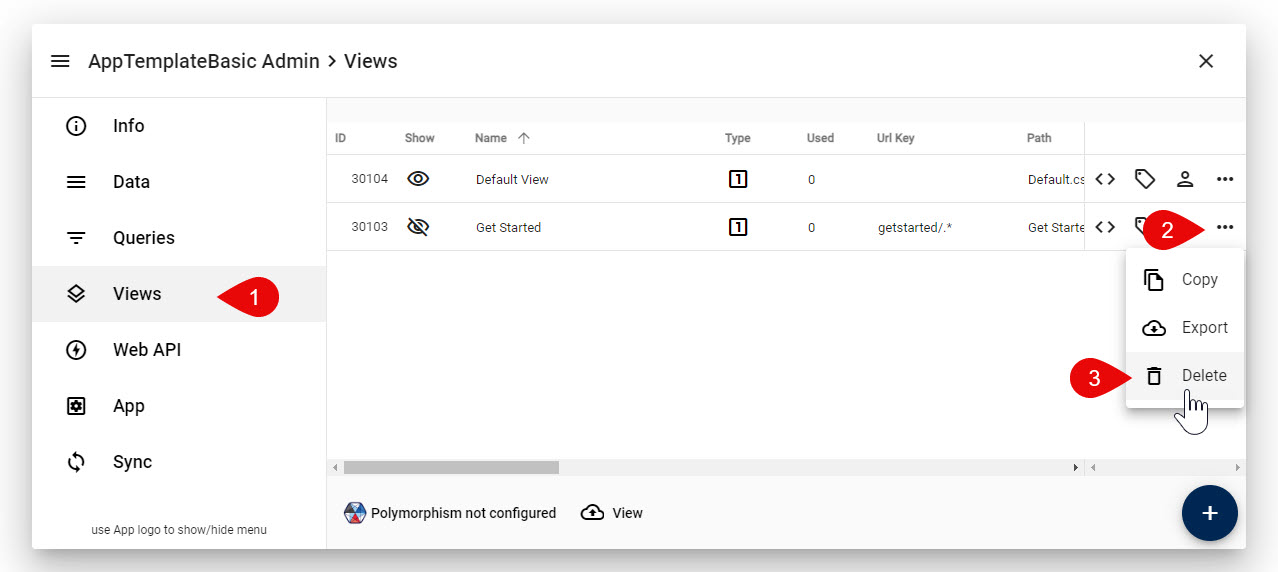
How to Remove Get Started
If you wish to remove all this get-started stuff, do the following:
- Delete the folder
/Get Started
-
Delete the
Get Started view in App Views.